In this article, we explain how to import a Transfer ID to your account if you have purchased a Native Instruments product second-hand or if you are transferring licenses between your accounts. Please follow the steps below to import a Transfer ID:
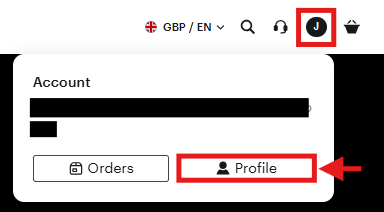
- Go to the Native Instruments website, click the user icon in the upper right, and select Profile. Log in if prompted.
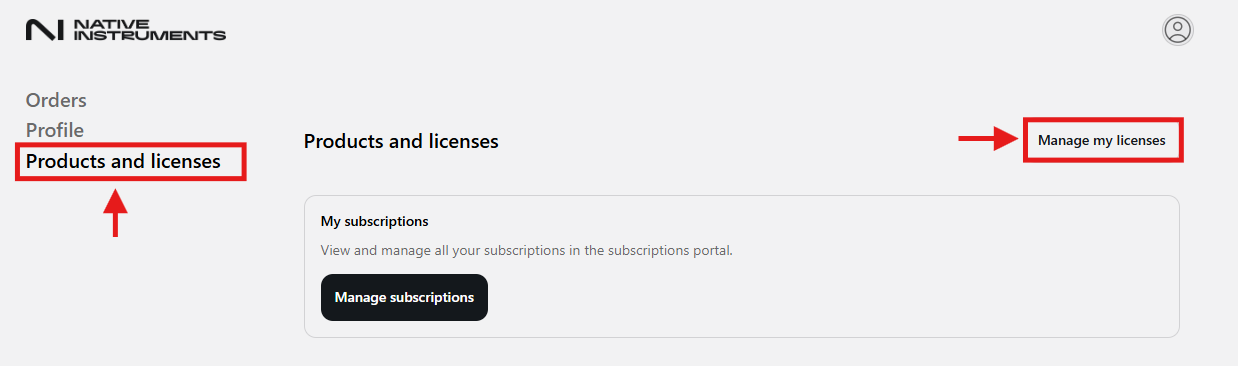
- Go to the Products and licenses tab
- Select Manage my licenses
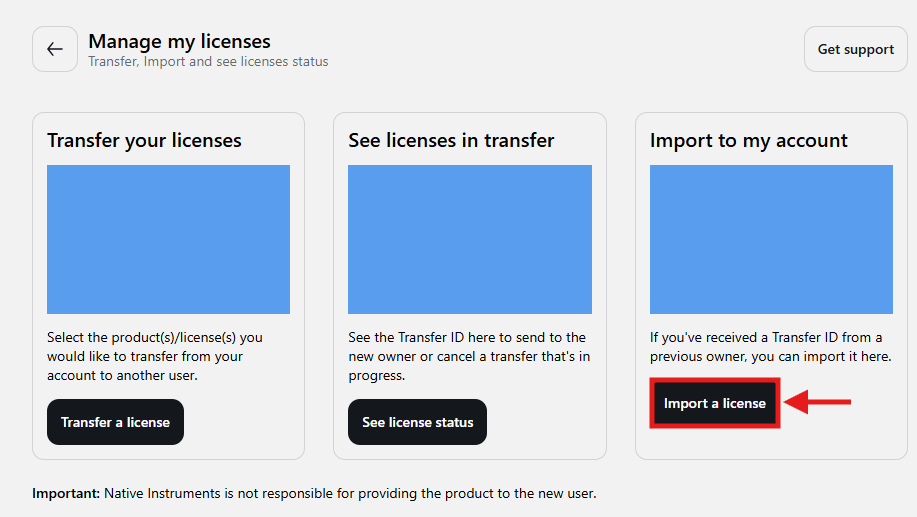
- Under the Manage my licenses hub, select Import a license
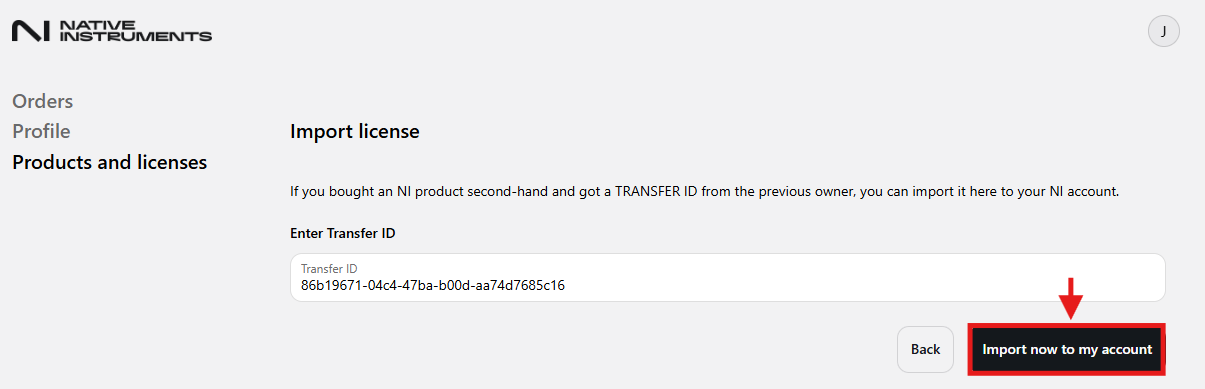
- Enter the Transfer ID that was given to you by the seller of your second-hand NI product. Once done, click Import now to my account.
- In the same window, you will be notified that the import was successful.
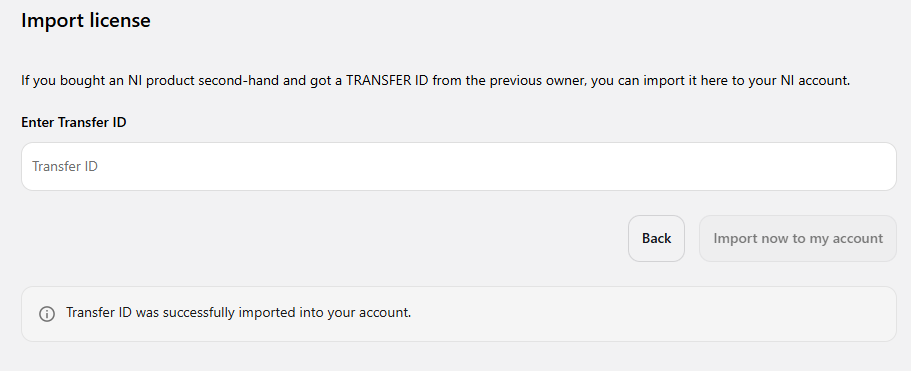
The NI product is now registered to your NI Account. Your products can be installed from the Available tab in Native Access and will be shown in your NI account's Products and License page.