If you’re experiencing issues with Beatport in Traktor Pro—such as errors, crashes, or tracks not loading—this is typically related to connectivity, account access, or software state.
TABLE OF CONTENTS
macOS
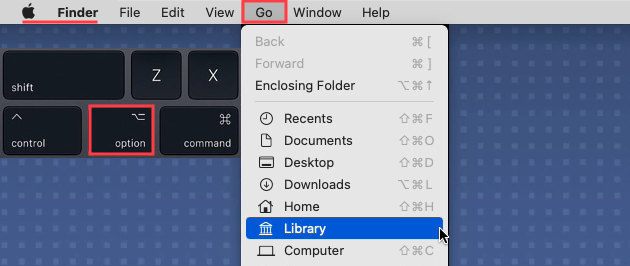
- Click 'Go' in the Finder menu bar, and hold down the 'Option' (Alt) key.
- Click the Library entry that now appears in the Finder > Go menu.
- Navigate to:
Users > *Username* > Library > Application Support > Native Instruments > Traktor > Streaming - Locate the Beatport folder and create a backup copy, e.g. on your desktop.
- Delete the Beatport folder.
- Open the Trash app and empty trash.
- Restart your computer.
- Launch Traktor Pro and log in to Beatport.
Windows
- Click on the Windows start button on the bottom left of your screen.
- Type "%localappdata%" and click on the option which appears:
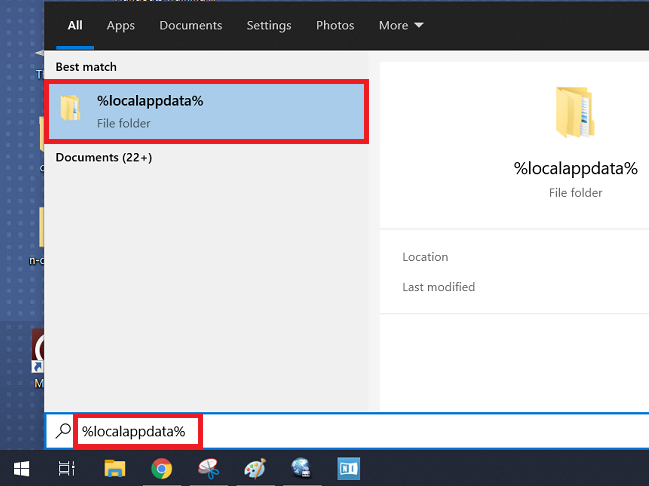
- This will open C: > Users > *Username* > AppData > Local
- From Local, navigate to: Native instruments > Traktor > Streaming
- Locate the Beatport folder and create a backup copy, e.g. on your desktop.
- Delete the Beatport folder.
- Restart your computer.
- Launch Traktor Pro and log in to Beatport.