Product Pictures are Missing in the Komplete Kontrol / Maschine 2 Browser
If thumbnail images are missing in the Komplete Kontrol or Maschine 2 browser, the software database or resource files may need to be reset.
TABLE OF CONTENTS
Symptom
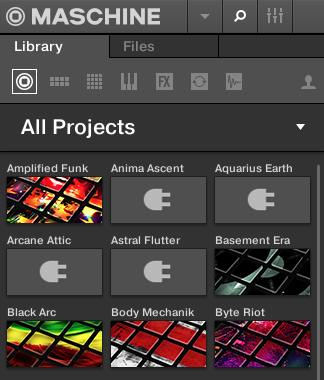
Thumbnail picture icons are not displayed in the KOMPLETE KONTROL or MASCHINE 2 browser.
macOS
- Close KOMPLETE KONTROL / MASCHINE and all other audio software.
- Open a Finder window and go to the following location:
Macintosh HD > Users > Shared - Locate the folder named NI Resources and move it to the trash.
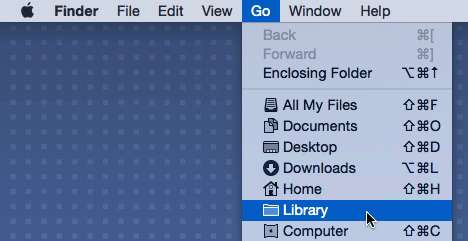
- Next, click Go in the Finder menu bar while holding down the option / alt key on the computer keyboard. Choose the Library entry that appears in the drop-down menu.
- In the user Library folder, navigate to the following location:
Application Support > Native Instruments - Locate the Komplete Kontrol and Maschine 2 folders and move them to the trash.
- Next, in the same user Library folder, navigate into the folder named Service Center and move the file named pal.db to the trash.
- Empty the system trash and then open Native Access:
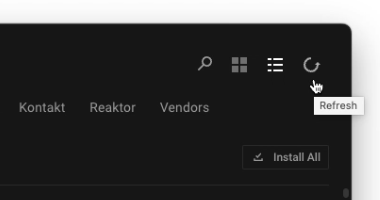
Macintosh HD > Applications > Native Access.app - Within Native Access, click the Refresh button and allow it to scan for a moment.
- Open the KOMPLETE KONTROL / MASCHINE 2 software in standalone mode and allow it to rebuild its database.
The thumbnails should now appear in the KOMPLETE KONTROL / MASCHINE 2 software Browser.
Windows
- Navigate to the following location:
C: > Users > Public > Public Documents - Locate the folder named NI Resources and move it to the trash.
- Next, navigate to:
C: > Users > "Username" > *AppData > Local > Native Instruments*Note: The AppData folder is hidden. This article explains how to access hidden folders on Windows systems.
- Delete the folders named Komplete Kontrol and Maschine 2.
- Then, navigate to:
C: > Users > "Username" > Documents > Native Instruments > Service Center - Locate the file named pal.db and move it to the trash.
- Open Native Access:
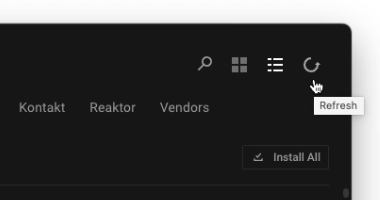
C: > Program Files > Native Instruments > Native Access > Native Access.exe - Within Native Access, click the Refresh button and allow it to scan for a moment.
- Open the KOMPLETE KONTROL / MASCHINE 2 software in standalone mode and allow it to rebuild its database.
The thumbnails should now appear in the KOMPLETE KONTROL / MASCHINE 2 software Browser.