This article explains how to use the MASCHINE+ as a classic MASCHINE controller with a computer. This can be useful if you want to use your MASCHINE+ with the MASCHINE desktop software or with a DAW.
Switching to Controller Mode:
- Ensure that your MASCHINE+ is not connected to your computer.
- Power your MASCHINE+ on.
- Once it has initiated, connect your MASCHINE+ to your computer with a USB cable.
- Press the SETTINGS button on your controller.
- Go to the System tab.
- Press Button 4 (CONTROLLER).
Now when you start the Maschine 2 software on your computer, your MASCHINE+ will function as a classic MASCHINE controller.
Note: If you are not already using the Maschine+ in standalone mode, it is sufficient to connect it to the computer with a USB cable (without the power cable plugged in). If you want the display to be brighter or not drain the computer's battery (e.g. of a laptop), you can plug in the power cable afterwards.
Using MASCHINE+ as an Audio Interface with a Computer:
MASCHINE+ can also be used as an audio interface for the MASCHINE software on your computer.
Windows:
- Ensure that the MASCHINE+ driver has been installed. You can find it here.
- After connecting MASCHINE+ to your computer in controller mode as per the steps above, start the MASCHINE 2 Software.
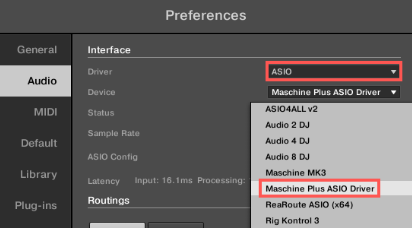
- Navigate to File > Preferences... and click on the Audio tab.
- Choose ASIO as the Driver and Maschine Plus ASIO Driver as the Device.
Mac:
- After connecting MASCHINE+ to your computer in controller mode as per the steps above, start the MASCHINE 2 Software.
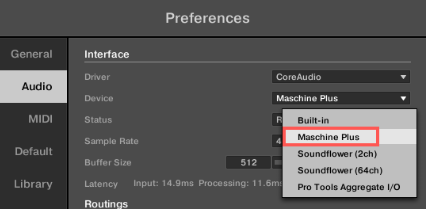
- Navigate to File > Preferences... and click on the Audio tab.
- Choose CoreAudio as the Driver and MaschinePlus as the Device.
Switching back to MASCHINE+ Standalone Mode:
To switch your MASCHINE+ back to its default standalone mode, follow these steps:
- Start the MASCHINE Software (if it's not running already).
- Press the SETTINGS button on your controller.
- Go to the System tab.
- Press Button 4 (STANDALONE).
Note: If you do not have access to a computer to switch your MASCHINE+ back to standalone mode, you can press and hold the FILE (Save) button for 10 seconds. This will switch the device back to standalone mode.
Now your MASCHINE+ is working in standalone mode again.