How to Make MASCHINE 2 Rescan your Default NI Plug-in Paths [VIDEO]
TABLE OF CONTENTS
Video
macOS
- Make sure MASCHINE is not running.
- Navigate to the following folder:
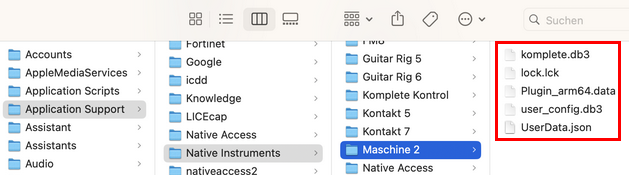
Macintosh HD > Users > *Your User Name* > Library > Application Support > Native Instruments > Maschine 2Note: the User Library folder is hidden. To access it, click on Go in the menu bar and press the Alt key. You'll now find the Library entry in the menu:

- Delete the files in that folder:
- Start MASCHINE in standalone mode. You find the standalone application here:
Macintosh HD > Applications > Native Instruments > Maschine 2
A splash screen will indicate that it is scanning your libraries and plug-ins. Once complete, the database will have been newly initialized.
Windows:
- Make sure MASCHINE is not running.
- Navigate to the following folder:
C > Users > *User name* > App Data > Local > Native Instruments > Maschine 2Important note: 'App Data' is a hidden folder. Read this article to learn how to enable the view of hidden folders on your Windows system.
- Delete all the files contained in that folder.

- Start MASCHINE 2 in standalone mode. You find the standalone application here:
C: > Program Files > Native Instruments > Maschine 2
A splash screen will indicate that it is scanning your Native Instruments libraries and plug-ins. Once complete, the database will have been newly initialized.