How Can I Update the Driver and Firmware of My Kontrol S88 MK3 on Windows?
If you are having problems installing the latest firmware for your Kontrol S-Series S88 MK3 keyboard on a Windows computer, please follow these steps:
- Click the Windows Start Button, type "updates" and hit enter.
- Install all available Windows updates.
- Close the Windows Updates window.
- Download the KSMK3 Updater for Windows:
https://www.native-instruments.com/specials/komplete/kontrol-update/ - Close your web browser and all other applications.
- Use a USB-C power supply for the Power Only port, along with a USB-C cable connecting the keyboard’s HOST port to the computer (with USBC to A adapter if needed).
- Turn the keyboard on.
- Unzip the downloaded KSMK3 Updater file and run the extracted "Updater" application.
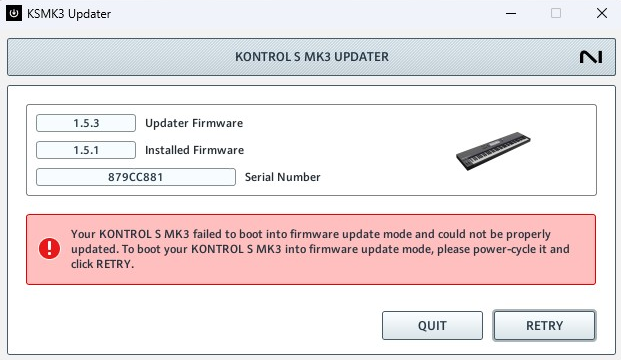
- Click the Update button.
- The update will fail:
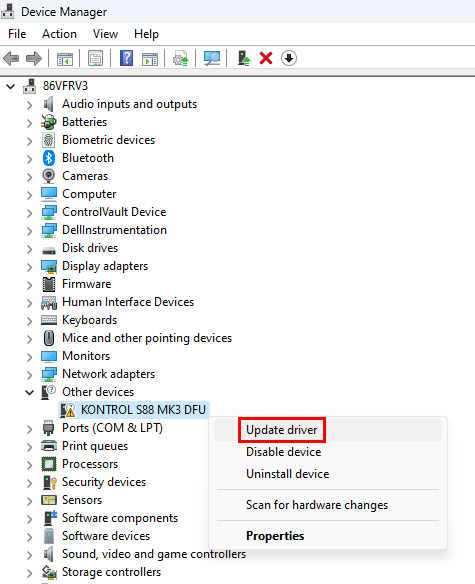
- Click the Windows Start Button, type "Device Manager" and hit enter.
- In the Device Manager, expand Other devices.
- Right-click KONTROL S88 MK3 DFU and select Update Driver.
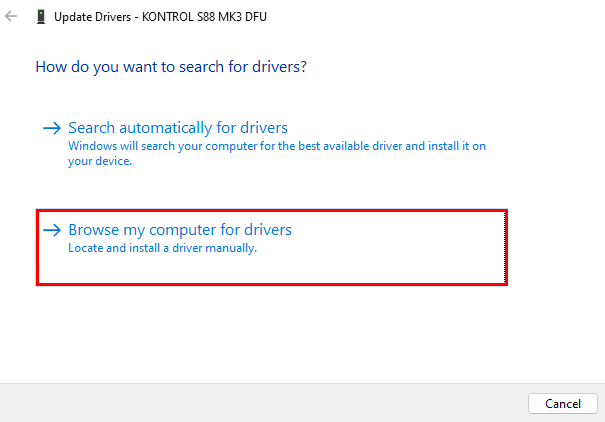
- Click Browse my computer for drivers:
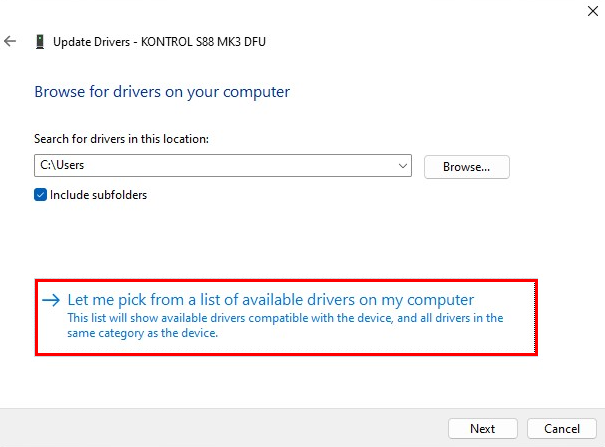
- Click Let me pick from a list of available drivers on my computer:
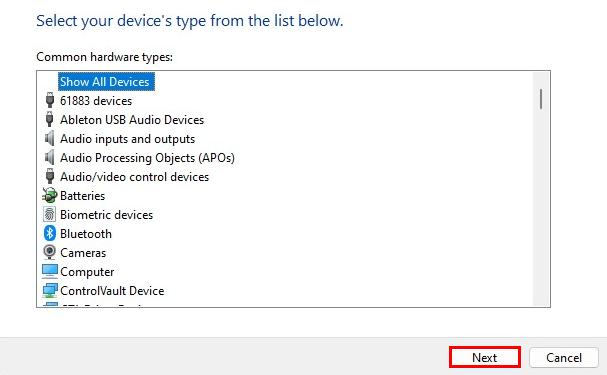
- Select Show All Devices and click Next:
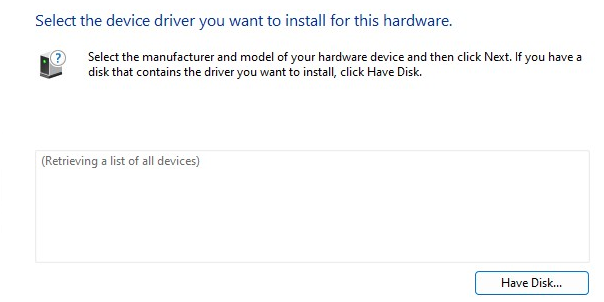
- This will retrieve a list of all devices which may take a moment:
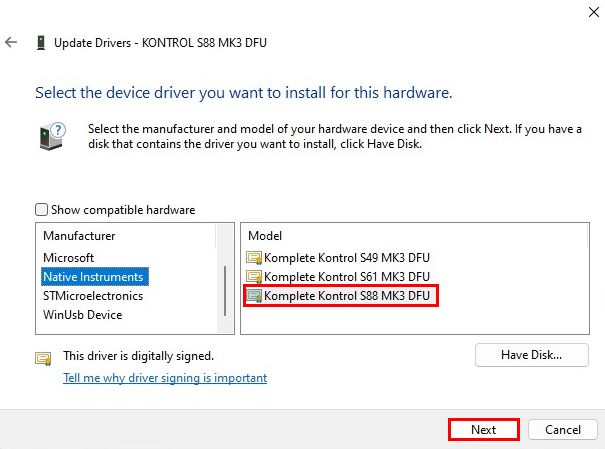
- Select Native Instruments and Komplete Kontrol S88 MK3 DFU and click Next:
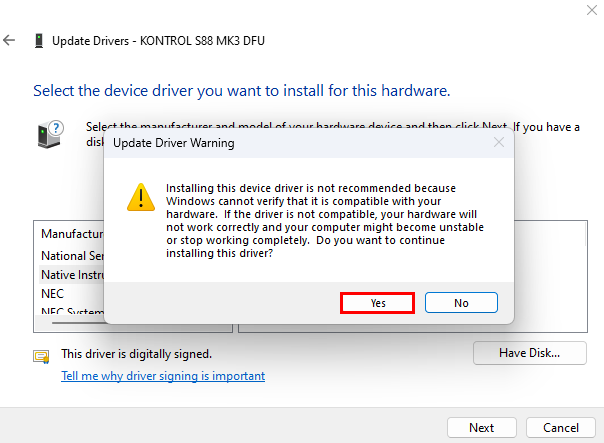
- An Update Driver Warning appears. Accept with Yes:
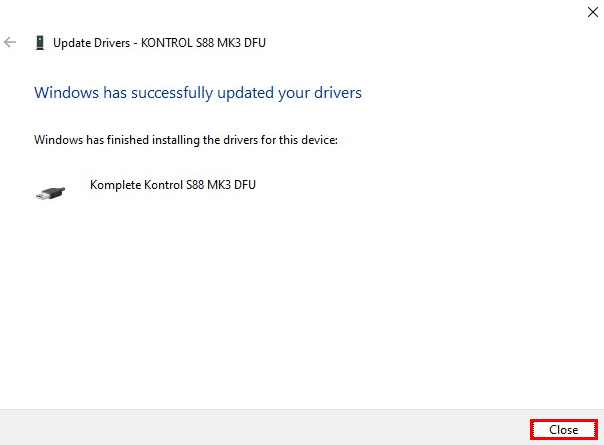
- The driver for the Komplete Kontrol S88 MK3 DFU is installed. Click Close:
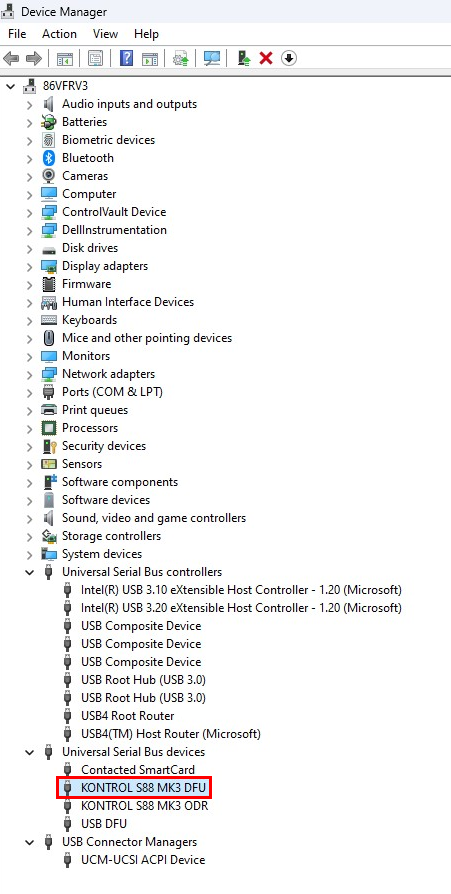
- The driver should now appear in Universal Serial Bus Devices:
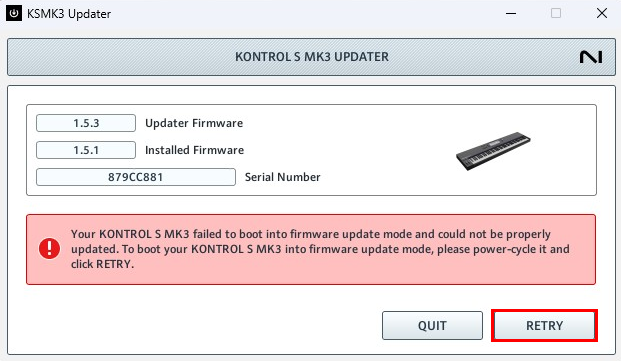
- In the KSMK3 Updater, click the Retry button:
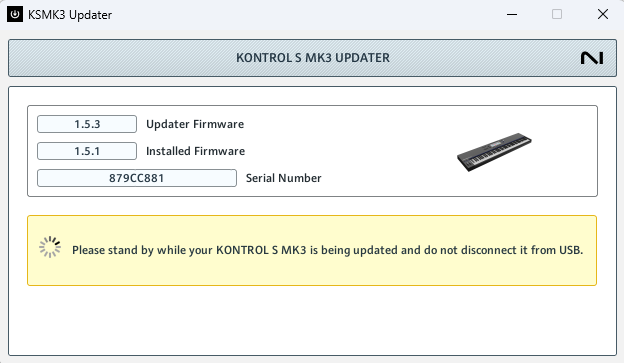
- This will start the firmware update process. The keyboard will be rebooted until the update is finished:
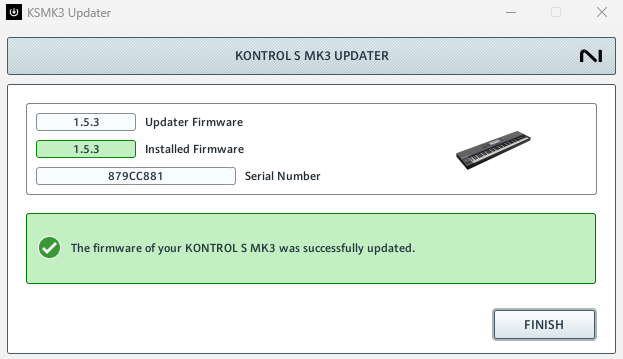
- After the update, click Finish to close the Updater:
If you are still having issues, please read this article: Kontrol S-Series MK3: Troubleshooting Firmware Update Issues