Komplete Kontrol | Using KOMPLETE KONTROL S-Series Keyboards with MCU Controllers in Logic, Cubase and Nuendo
If you are using a MCU-based controller for Logic, Cubase or Nuendo, we recommend to not activate your KOMPLETE KONTROL S-Series Keyboard as a MCU device in your host application.
Note: MCU is a high-resolution communication protocol for control surfaces supported by Logic, Cubase and Nuendo, among others.
Automatic track focus, track switching and transport control might not work properly when using KOMPLETE KONTROL S-Series and other MCU devices simultaneously in Logic, Cubase, or Nuendo. Note that full KOMPLETE KONTROL plug-in control is not affected. This includes KOMPLETE Browser, Native Map, Light Guide and the perform features. Please also note that within a supported host the INSTANCE button will not work (read more here). If you deactivate your KOMPLETE KONTROL S-Series as MCU device, the only way to bring the focus on the instance of KOMPLETE KONTROL you want to control is to call up manually the KOMPLETE KONTROL plug-in and to press the little keyboard icon with a number corresponding to the number of keys on your S-Series controller:

If you have already activated your KOMPLETE KONTROL S-Series Keyboard as a MCU device in Logic, Cubase or Nuendo and are experiencing issues, follow the instructions below to deactivate it.
Deactivating the KOMPLETE KONTROL S-Series Keyboard as a MCU device in Logic
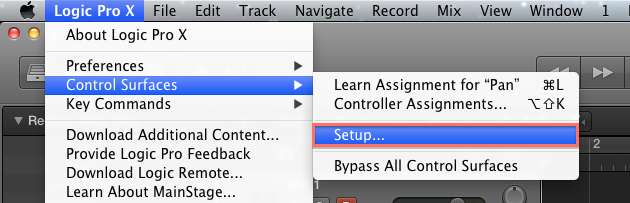
- In Logic, open the following menu bar entry: Logic Pro X > Control Surfaces > Setup...
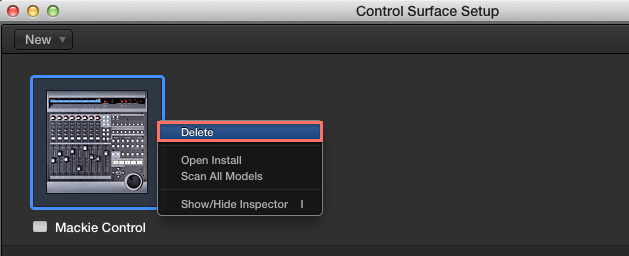
- In the Control Surface Setup, right-click on the Mackie Control device which was created for your KOMPLETE KONTROL S-Series keyboard and choose Delete from the context menu.
- Close the Control Surface Setup window.
Deactivating the KOMPLETE KONTROL S-Series Keyboard as a MCU device in Cubase / Nuendo
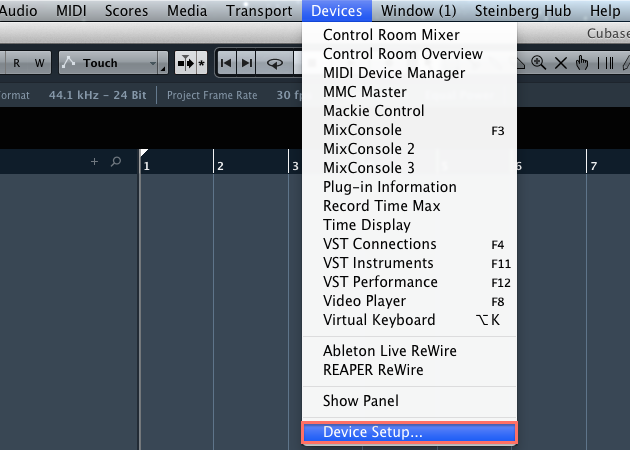
- In Cubase, open the following menu bar entry: Devices > Device Setup...
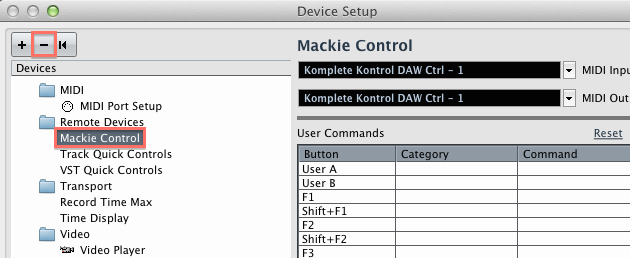
- In the Device Setup, select the Mackie Control device which you created for your KOMPLETE KONTROL S-Series keyboard and click on the '-' symbol in the top left corner to delete it.
- Close the Device Setup window by clicking OK.