How to Use The Finger as a MIDI-Controlled FX in Ableton Live
This article explains how to configure The Finger as a MIDI-controlled FX in Ableton Live. In contrast to common FX plug-ins, the parameters of MIDI-controlled FX can be controlled via MIDI, e.g. by playing a MIDI keyboard.
- Create a MIDI track in Ableton Live.
- Create an audio track. In this example, we have named the audio track Vocals.
- Insert Reaktor 6 FX as a VST effect plug-in on the Vocals track.
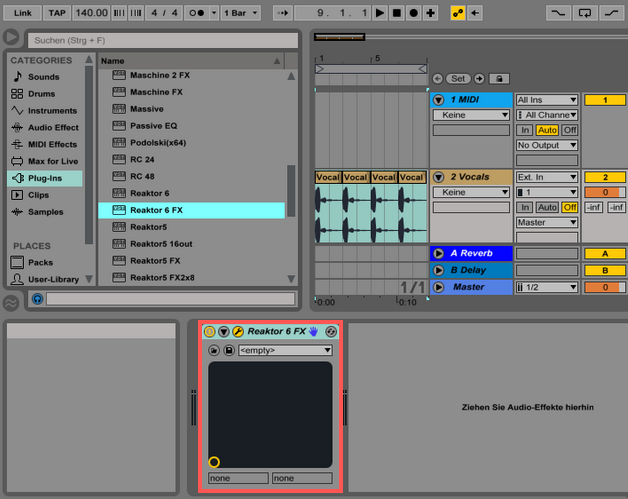
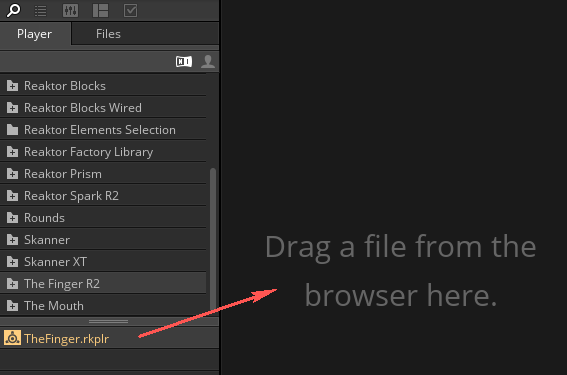
- Open up the Reaktor 6 FX plug-in interface and load The Finger.
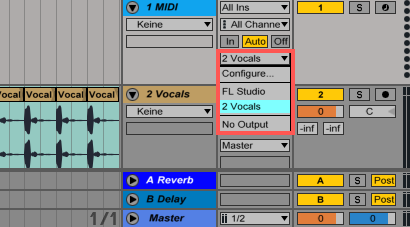
- In the Output Type drop-down menu (or the MIDI To drop-down if you are working in Live's Session View) of the MIDI track select Vocals.
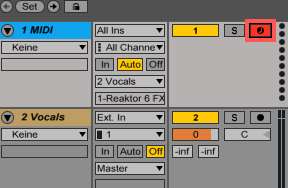
- Record enable the MIDI track.
By pressing notes on your MIDI keyboard, it is now possible to switch between The Finger's different effects (eg. bandpass, time-stretching or looping effects, etc.) to process the audio track.