Reaktor 6 | Reaktor FX Not Appearing as a Separate AAX Plug-in in Pro Tools
If you're using Reaktor 6 with Pro Tools and cannot find a separate Reaktor FX AAX plug-in, you may assume that part of the installation is missing. However, this behaviour is expected and differs from how Reaktor is presented in other plug-in formats such as VST3.
This article explains how Reaktor functions in Pro Tools, why a separate Reaktor FX AAX plug-in does not appear, and how to confirm that your installation is working correctly.
TABLE OF CONTENTS
- Understanding the Difference Between AAX and VST3
- Why You Cannot See a Reaktor FX AAX Plug-in
- How Reaktor Functions as an Effect in Pro Tools
- How to Verify Your Installation
- Troubleshooting Reaktor Detection Issues
- Summary
Understanding the Difference Between AAX and VST3
Different plug-in formats can present the same product in different ways.
With the VST3 format, Reaktor installs separate entries for:
- Reaktor 6 (Instrument)
- Reaktor FX (Effect)
As a result, many users become accustomed to seeing separate instrument and effect plug-ins listed within their DAW.
However, AAX plug-ins in Pro Tools do not always follow the same structure, and Reaktor's implementation is different from its VST3 counterpart.
Why You Cannot See a Reaktor FX AAX Plug-in
In Pro Tools, Reaktor installs a single AAX plug-in:
Reaktor 6.aaxplugin
Unlike VST3 installations, Native Instruments does not provide a separate:
Reaktor FX.aaxplugin
file for current Reaktor 6 AAX installations.
If you search your system and only find Reaktor 6.aaxplugin, this does not indicate an installation problem.
How Reaktor Functions as an Effect in Pro Tools
Although there is only one AAX plug-in installed, Reaktor is capable of operating in both:
- Instrument contexts
- Effect contexts
Within Pro Tools, the same Reaktor 6 plug-in can be inserted onto an audio track and used to load compatible Reaktor effects.
This differs from some other DAWs where separate instrument and effect plug-in entries are displayed.
If Reaktor loads successfully on an audio track and can process audio using effect ensembles, then the plug-in is functioning as intended.
How to Verify Your Installation
To confirm that Reaktor is installed correctly, follow the steps below:
For Mac:
- Open Finder.
- Navigate to:
Macintosh HD/Library/Application Support/Avid/Audio/Plug-Ins
- Verify that Reaktor 6.aaxplugin is present.
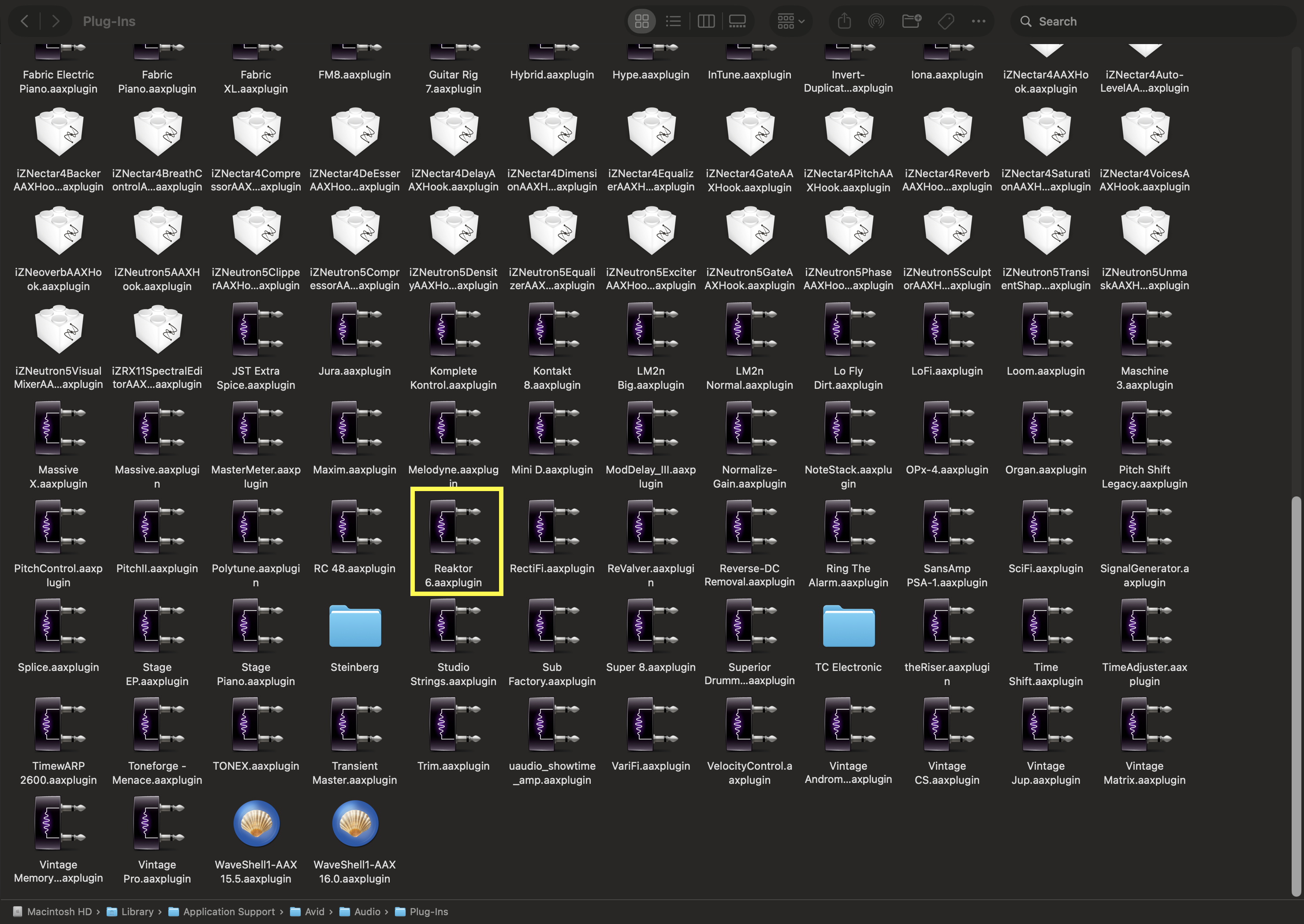
For Windows:
- Open File Explorer.
- Navigate to:
C:\Program Files\Common Files\Avid\Audio\Plug-Ins
- Verify that Reaktor 6.aaxplugin is present.
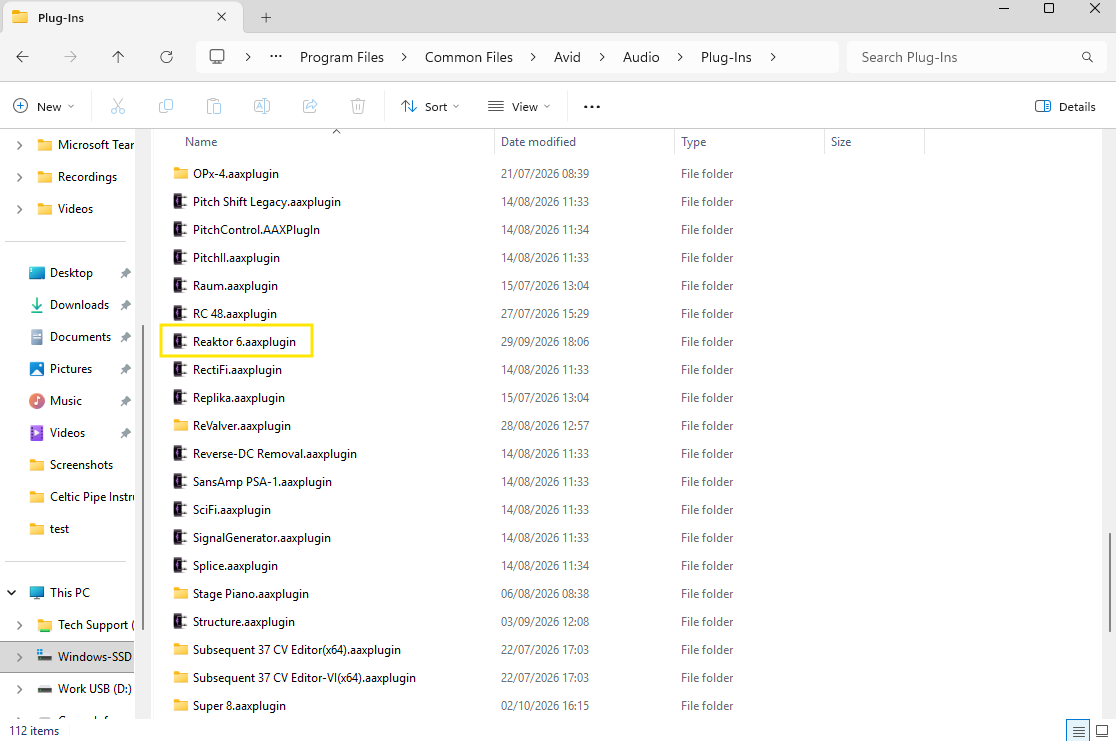
If Reaktor 6.aaxplugin is found and Reaktor loads in Pro Tools, then the AAX component has been installed successfully.
Troubleshooting Reaktor Detection Issues
If Reaktor is installed but Pro Tools is not detecting it correctly, it may be worth rebuilding the Pro Tools plug-in cache.
Clear the Pro Tools AAX Plug-in Cache
For Mac:
- Close Pro Tools completely.
- In Finder, navigate to:
/Users/Shared/Pro Tools/AAXPlugInCache
- Dlete the AAXPlugInCache folder and empty your recycling bin.
- Launch Pro Tools again.
- Allow Pro Tools to complete a full plug-in scan.
For Windows:
- Close Pro Tools completely.
- Open File Explorer.
- Navigate to:
C:\Users\%USERNAME%\AppData\Roaming\Avid\Pro Tools
- Delete the following files if present:
InstalledAAXPlugIns
InstalledAAXPlugIns.aaxplugincache
- Empty the Recycle Bin.
- Launch Pro Tools again.
- Allow Pro Tools to complete a full plug-in scan.
During startup, Pro Tools recreates its plug-in database. If the cache had become corrupted or outdated, rebuilding it may resolve plug-in detection issues.
Summary
If you do not see a separate Reaktor FX AAX plug-in in Pro Tools, this is expected behaviour and does not indicate that Reaktor has been installed incorrectly.
Unlike the VST3 format, which presents separate instrument and effect versions of Reaktor, the AAX format uses a single Reaktor 6 plug-in that can operate in both instrument and effect contexts within Pro Tools.
If Reaktor 6.aaxplugin is present in the Avid Plug-Ins folder and loads successfully within Pro Tools, the AAX component is installed correctly. Should Reaktor fail to appear within Pro Tools, rebuilding the AAX plug-in cache may help resolve plug-in detection issues.
If you continue to experience problems after following the steps in this article, please contact Native Instruments Support and provide details of your operating system, Pro Tools version, Reaktor version, and any troubleshooting steps already performed.