If Native Access displays a “Download failed” error during installation, it usually indicates a problem downloading the installer files. Follow the steps below to complete the installation.
TABLE OF CONTENTS
Symptom
When trying to install a product, Native Access stops the download and displays the following error message:
Download failed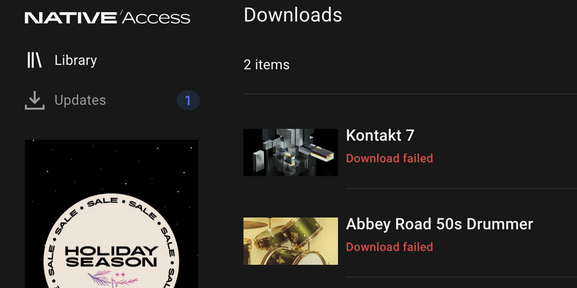
Solutions
Reinstall the product
- Open the Library tab in Native Access.
- Find the product, click the 3 dots and select Reinstall:
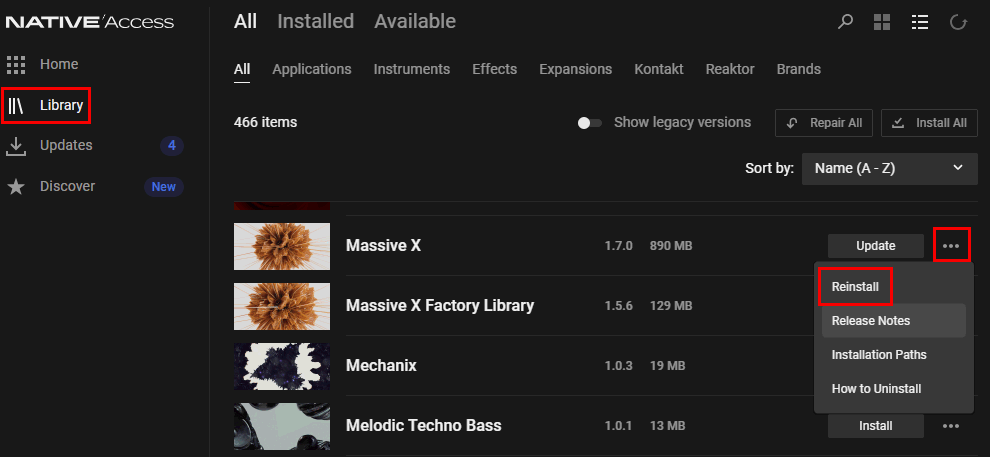
- This will install the newest version of the product.
Download with the NI Download Manager
In case this doesn't help you can download your product with the NI Download Manager.
Further wokaround on macOS
If you have an iCloud+ subscription, temporarily deactivate iCloud Private Relay for the installation:
- Close Native Access.
- Open the macOS System Settings > iCloud > Private Relay.
(You can also use the System Settings search field to find the Private Relay setting.) - Turn off Private Relay.
- Restart your computer.
- Start Native Access and install your products.
- After installation, open the System Settings again and reactivate Private Relay.
In case this doesn't help or if you don't have an iCloud+ subscription, you can download your product with the NI Download Manager.