Some Native Instruments products appear in demo mode due to activation issues. The fixes below include verifying the correct Native ID login, deleting or recreating the "Native Instruments" folder with proper subfolders to fix corrupted or missing activation tokens, and deleting corrupted XML files.
Symptom
Some products do not activate in Native Access and appear in DEMO mode.

TABLE OF CONTENTS
Mac
1. Check your Native ID
It may be that you are logged in via Native Access with the incorrect account (Native ID). Ensure that you are logging in with the same email address you initially used to register your NI products. Please use the link below to log into your account:
https://account.native-instruments.com/
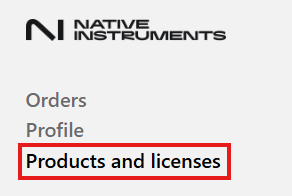
You can check which products are registered to your account via the Products and licenses section
2. Your activation fails because of corrupted or missing activation tokens
This can be solved by following the steps outlined here:
- Make sure Native Access is closed.
- Navigate to the following directory:
Macintosh HD > Users > Shared
- Rename the "Native Instruments" folder to Native Instruments.old
Renaming to .old ensures we can access the original Native Instruments folder in case licenses or older logs need to be recovered. - Restart Native Access.
The activation should now work as expected.
2.1 If the Native Instruments folder is missing
Please note that if you can't carry out the steps in chapter 2, you might be missing the “Native Instruments” folder at the above location.
- Navigate to:
Macintosh HD > Users > Shared - In this location, please create a new folder and name it "Native Instruments".
- Within that "Native Instruments" folder, create a new folder called "Native Access".
- And finally, within the "Native Access" folder, create an additional folder named "ras3".
The folder structure should then look like this:
Macintosh HD > Users > Shared > Native Instruments > Native Access > ras3
- Now open Native Access to check if the products are now activated.
2.2 If the ras3 or other Native Access files aren't being generated in the Native Instruments folder
In some cases, your folders may be present, but they are missing the ras3 files. This can be caused by a permissions issue on the system. To correct this, please follow the steps below:
- Close Native Access.
- Go to the following file location:
/Users - Right-click on the Shared parent folder and select Get Info.
- Under Sharing & Permissions, ensure your user account is present with Read & Write enabled
- If the account is not present, use the + icon to manually add your account
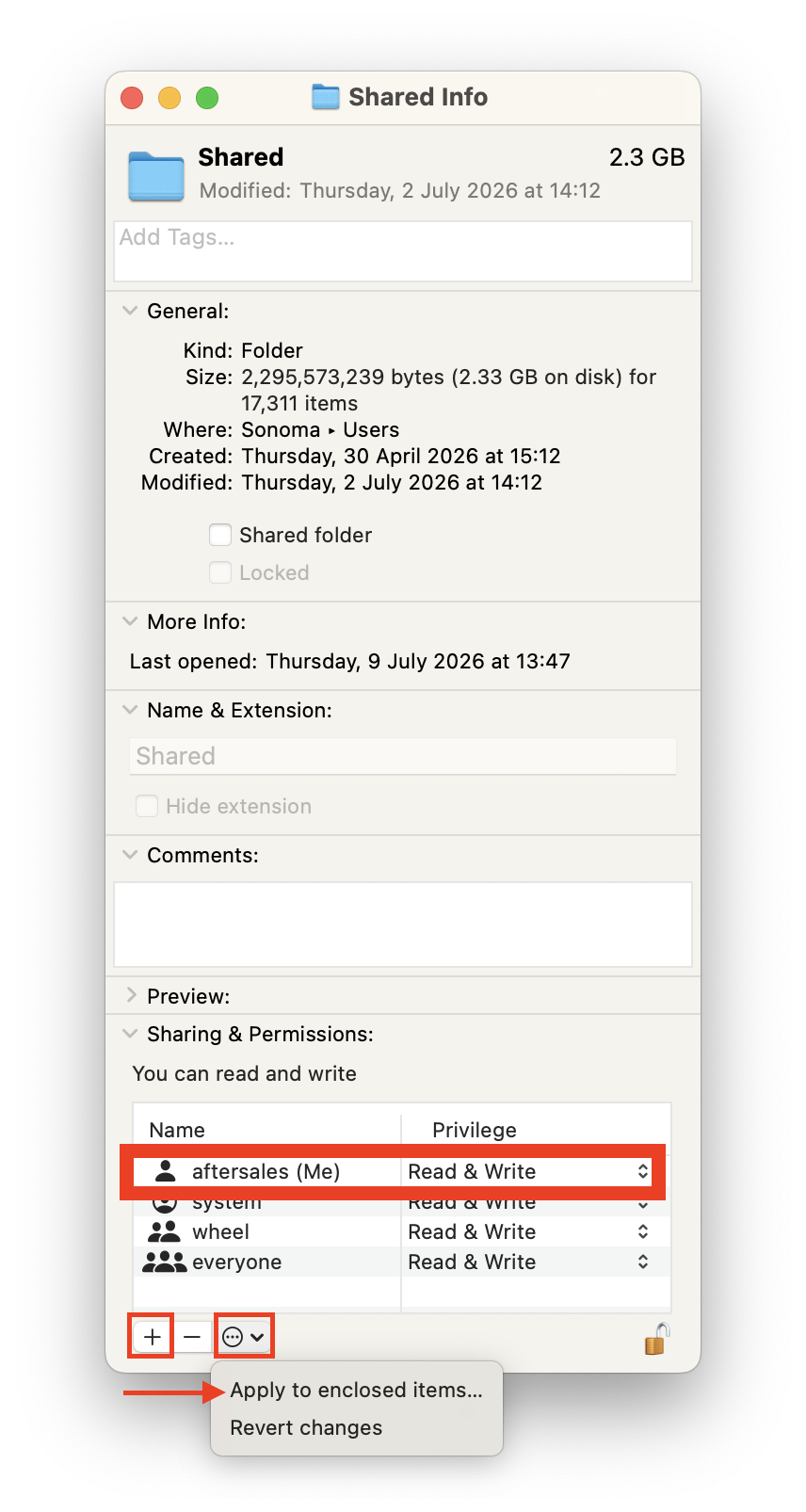
- Use the drop-down menu to enable Apply to enclosed items
3. You have corrupted XML files
This can be solved by deleting the corrupted XML files and restarting Native Access.
You can do this as follows:
- Navigate to:
Mac HD > Library > Application Support > Native Instruments > Service Center - Delete the Native Access.xml file and the *NAME OF PRODUCT IN DEMO MODE*.xml file.
- Restart Native Access. New .xml files will automatically be created.
Windows
1. Check your Native ID
It may be that you are logged in via Native Access with the incorrect account (Native ID). Ensure that you are logging in with the same email address you initially used to register your NI products. Please use the link below to log into your account:
https://account.native-instruments.com/
You can check which products are registered to your account via the Products and licenses section
2. Your activation fails because of corrupted or missing activation tokens
This can be solved by following the steps outlined here:
- Make sure Native Access is closed.
Navigate to the following directory:
C:\Users\Public\DocumentsImportant note: Do NOT navigate to "C: > Users > *Your Username* > Documents"!
- Rename the "Native Instruments" folder to Native Instruments.old
Renaming to .old ensures we can access the original Native Instruments folder in case licenses or older logs need to be recovered.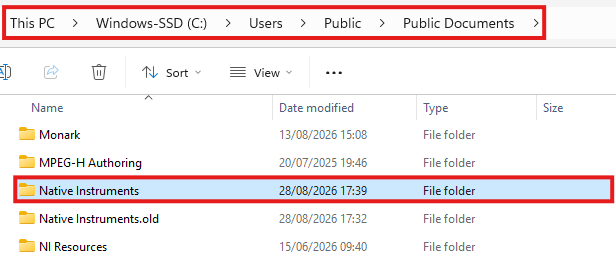
- Restart Native Access.
2.1 If the Native Instruments folder is missing
Please note that if you can't carry out the steps in chapter 2, you might be missing the “Native Instruments” folder at the above location.
- Navigate to:
C:\Users\Public\Documents - In this location, please create a new folder and name it "Native Instruments".
- Within that "Native Instruments" folder, create a new folder called "Native Access".
- And finally, within the "Native Access" folder, create an additional folder named "ras3".
The folder structure should then look like this:
C: > Users > Public > Public Documents > Native Instruments > Native Access > ras3

- Now open Native Access in administrator mode. This can be done by right-clicking "Native Access.exe" and selecting "Run as administrator".
3. You have corrupted XML files
This can be solved by deleting the corrupted XML files and restarting Native Access.
You can do this as follows:
- Navigate to:
C: > Program Files > Common Files > Native Instruments > Service Center - Delete the Native Access.xml file and the *NAME OF PRODUCT IN DEMO MODE*.xml file.
- Restart Native Access. New .xml files will automatically be created.