You can move the BATTERY 3 library to a different location after installation, such as an external drive.
This guide shows how to update the content path so BATTERY can locate your library correctly.
How to Move the BATTERY 3 Library
- After moving the Library to a new location, start BATTERY 3, File > Options.
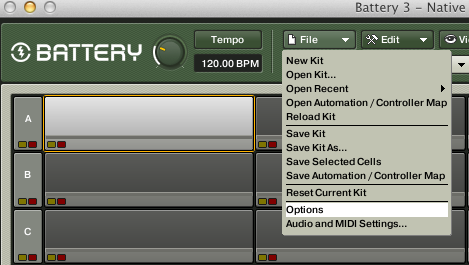
- In the field Factory Content Path, click on the small box containing the folder symbol.

A new window will open where you can select a new location for the BATTERY 3 Library. Once the path is selected, click Choose.
Important: Make sure the library is fully moved before updating the path. If files are missing or incomplete, samples may fail to load.